
How to Choose the Best CarPlay Adapter: Compatibility, Connectivity, and Setup Guide
by Echo Zou on Nov 24, 2025

So how to choose a CarPlay adapter is based on your car’s head unit, iPhone iOS, and desired wired or wireless usage.
In the Bay Area, we test support for spotty tunnels and dense traffic, so fast boot and stable Wi-Fi 5 or 6 count. For a CarPlay adapter, match USB-A or USB-C in your dash, confirm 5V/1A draw, and ensure firmware updates via app.
Search for low-latency audio, GPS pass-through, and trusty Siri. The following section maps our picks by car model and budget.
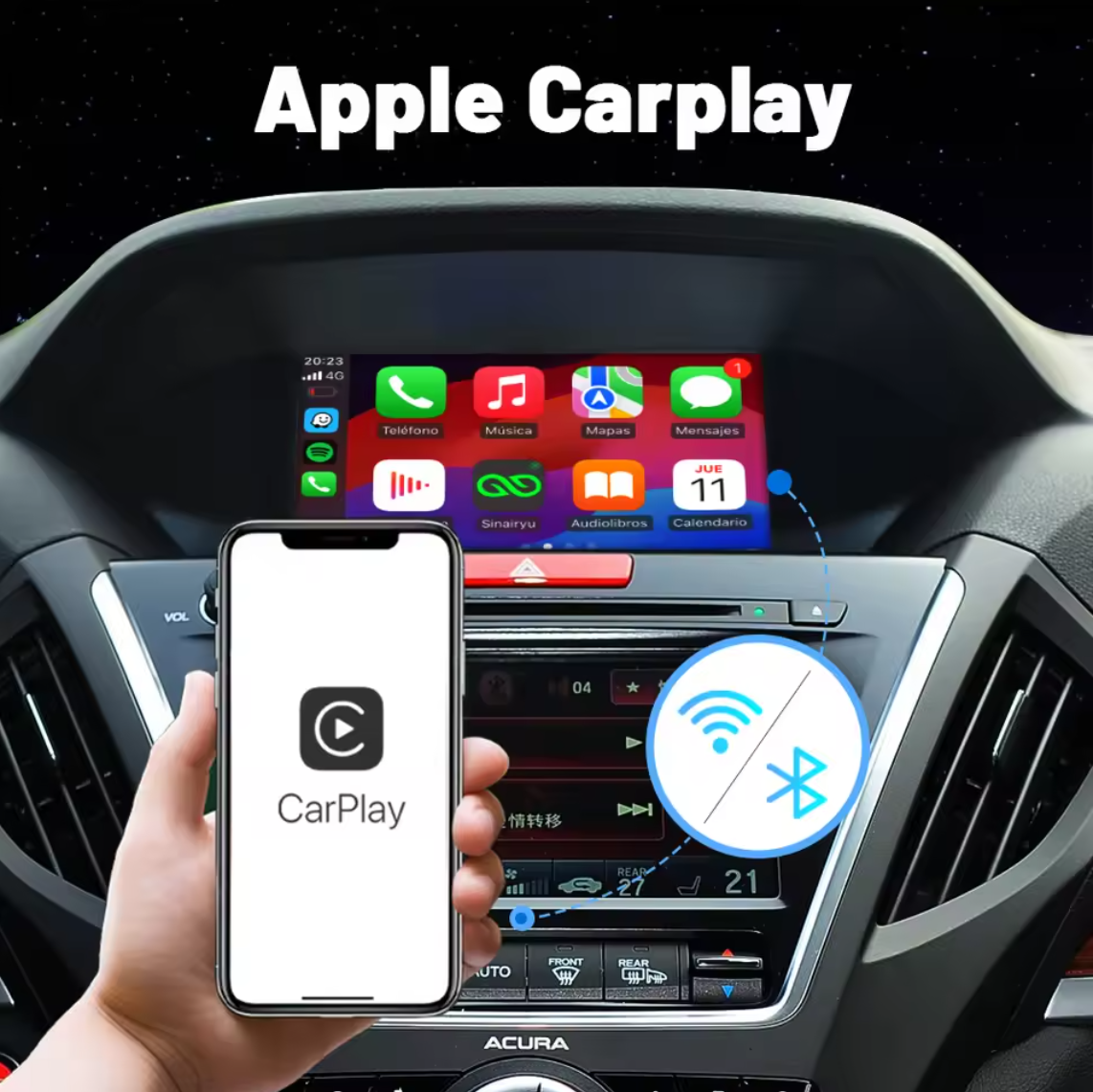
Wireless vs. Wired Adapters
Select depending on your driving style, your car’s head unit and how much you value uptime over convenience. In the U.S., most late-model cars with factory CarPlay over USB operate with either route. Older aftermarket head units might require firmware updates or a particular USB-A/USB-C port.
Compare the convenience of wireless CarPlay adapters with the reliability of wired connections for daily driving.
Wireless prevails on convenience. You pull in, the phone remains in your pocket, CarPlay boots on its own, and there’s no cable to wrestle on quick city jaunts. That reduces clutter and wear on the phone’s port.
The tradeoff is small but real lag: many users see a one to two second delay when skipping tracks or loading lyrics, and some report occasional drops, especially in dense urban corridors with heavy 2.4 GHz noise. Wired is plug-and-go, with better audio quality, lower latency, and fewer headaches on those long Bay Area commutes or highway drives.
Evaluate wireless CarPlay adapter compatibility with your car’s existing infotainment system and available ports.
Look at your head unit’s CarPlay version, supported codecs, and if the USB port is data, not charge only. There are cars that expose more than one port. Not all of them will pass CarPlay.
If your car has a USB-C hub retrofit, ensure it continues to negotiate CarPlay over USB. For the aftermarket head units found in older San Francisco rides, check the adapter’s firmware, vehicle whitelists, and dual-band Wi-Fi support. Good adapters, whether wireless or wired, minimize disconnects and those strange handshake loops.
Consider the benefits of wireless freedom, such as reduced cable clutter and seamless phone connectivity.
Wireless keeps the console clean, pairs great with MagSafe mounts and allows passengers to manage the phone without yanking a wire. It is perfect for quick trips, ride shares, and small-cabin cars where cable snags abound.
Auto-reconnect is useful if you run a lot of errands.
Weigh potential drawbacks like wireless latency, occasional connection drops, and the need for stable Bluetooth or Wi‑Fi.
Wireless uses Bluetooth for handshakes and Wi-Fi for data, so interference can sting. Users experience disconnects and multi-phone pairing confusion. Changing drivers can lock you to the wrong phone and prompt re-pairing.
Wired adapters avoid this and remain rock solid in high radio noise areas. That said, a quality adapter—wireless or wired—alleviates very few headaches.
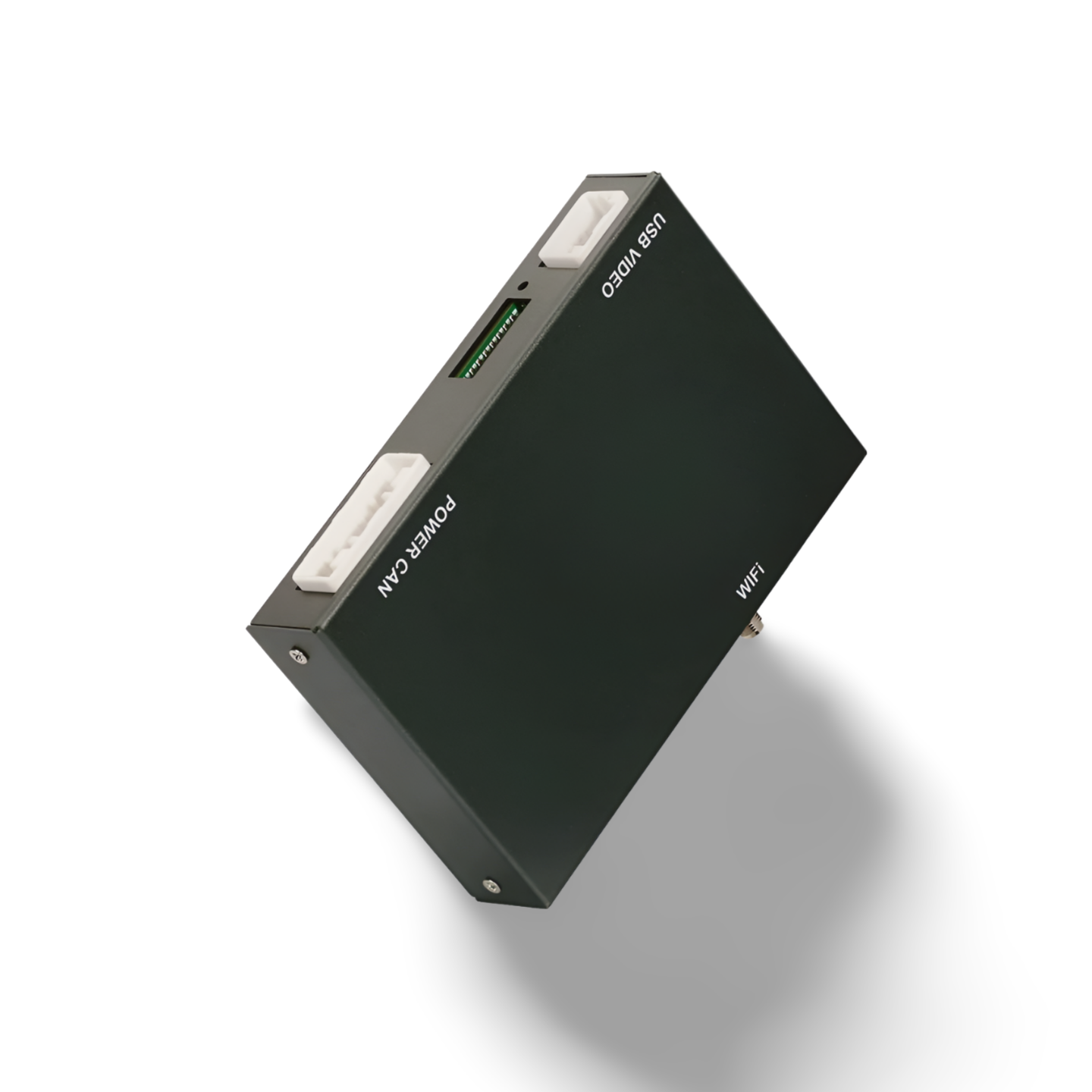
How to Choose Your CarPlay Adapter
Pair the adapter to your car and iPhone, then balance speed, stability and support. Stick to trusted brands sold in the U.S. With transparent warranty conditions and positive reviews.
-
Must-have features:
-
Native CarPlay support (wired or wireless as required).
-
5 GHz Wi-Fi, Bluetooth 5.x, fast boot, low latency.
-
Siri voice control, stable re-connection after ignition.
-
OTA firmware updates, US warranty, responsive support.
-
USB/USB-C power compatibility, clear status LEDs, quality heat management, quality cables/connectors.
-
1. Vehicle Check
Verify your head unit has CarPlay available from the factory or retrofit module. Consult your owner’s manual or the automaker’s US support page. If retrofit, check the module’s SDK or vendor list to see if your car is listed.
Check your dash for required ports: most wireless adapters use USB‑A. Newer units may need USB‑C. Some retrofits use HDMI for video in. Pay attention to the power output of the port in particular.
Stay on top of firmware. Update your car’s infotainment software through the dealer or over the air if your brand allows it.
Create a quick matrix of candidates:
-
Ottocast U2‑Air: Toyota (2016 and newer), Honda (2016 and newer), VW/Audi (2017 and newer)
-
Carlinkit 5.0: Ford/Lincoln (2017+), GM (2016+), BMW/MINI (2017+)
-
Carluex Air: Hyundai/Kia (2017+), Mazda (2018+), Subaru (2017+)
Cross-check your exact model year.
2. Connection Speed
Select adapters with low latency for maps and calls. Latency under 200 ms feels snappy for turn-by-turn navigation. Prefer 5 GHz Wi-Fi to reduce congestion in crowded U.S. Cities.
On setup, the time to cold boot to CarPlay home should be less than 15 to 20 seconds, which is ideal. Test Siri response, playlist scrolling, and map panning.
Steer clear of models with user complaints of dropouts or sluggish reconnection post-engine start. These frequent disconnects kill trust.
3. Processor Power
Opt for newer chipsets and ample memory. They keep audio, maps, and messages fluid under stress and minimize UI lag. For instance, look at spec sheets to see what CPU generation and RAM are present.
Shoot for units that process app switches and HD stream without frame drops. Low-end chips can crash under navigation, music, and messages.
Older processors tend to mean heat, lag, and random reboots. Avoid them, even if inexpensive.
4. Firmware Support
Like OTA updates that repair bugs and keep an eye on new iOS versions. Verify whether updates are free, with a companion app or USB file method as backup. Read U.S. User reviews to verify cadence and change logs.
So does weak firmware support, which causes them to break after iOS updates. Warranty and support matter more than a tiny price difference.
5. Physical Design
Select mini shells that tuck into the console. Short, flexible cables assist with clean cable runs.
Seek out rock-solid casings, snug connectors, and obvious status LEDs or a tiny button for pairing. Most units set up in less than 2 minutes. Reliable hardware and a slick UI make daily use effortless.

The Installation Experience
Install steps revolve on fit and simplicity. Verify that the adapter supports your car’s head unit and iPhone iOS first, and confirm model-year and trim notes on the brand’s compatibility page. Most wireless CarPlay adapters in the U.S. Market are plug-and-play: plug into the USB-A or USB-C data port, wait a few seconds while it powers up, then pair.
Keep Bluetooth and Wi-Fi enabled. The adapter powers up, emits a pairing request and connects within moments. In a 2020 Honda Accord or a 2018 Subaru Crosstrek, this looks the same: ignition on, adapter in, phone pairing, CarPlay tile appears. If audio lags or the screen stutters, re-seat the USB, distance the adapter from metal in the console and try a fast power cycle with an unplug/replug.
For what it’s worth, follow brand guides when available. Good manufacturers provide PDF guides and mini videos that track real dashboards—Ford Sync 3, Toyota Entune, BMW iDrive. Use the exact menu paths they show: Settings > General > CarPlay > Available Cars on iPhone, then select the adapter name.
Others push firmware through a companion app. Run the updates before your initial journey to minimize Bluetooth handoff drops and latency on calls and Siri.
Build a simple checklist:
-
Car compatibility confirmed by model/year and infotainment version.
-
USB data port found (not charge-only) and data-rated cable.
-
iPhone updated. Bluetooth and Wi-Fi both enabled. Personal Hotspot deactivated.
-
Adapter firmware current; vendor app installed if required.
-
First pairing done while parked; allow all CarPlay prompts.
-
Test calls, maps voice, steering buttons and mic gain, mark lag.
If there are issues, restart the adapter, delete the Bluetooth profile, re-pair, relocate the adapter, and then update the firmware again.
Ask for pro install if your vehicle has factory cameras, steering wheel control CAN modules, or aftermarket head units in tight dashboards. Bay Area shops like to sprinkle in harness adapters and code settings, which assist on VW, Audi, and a few of the pickier BMW models.
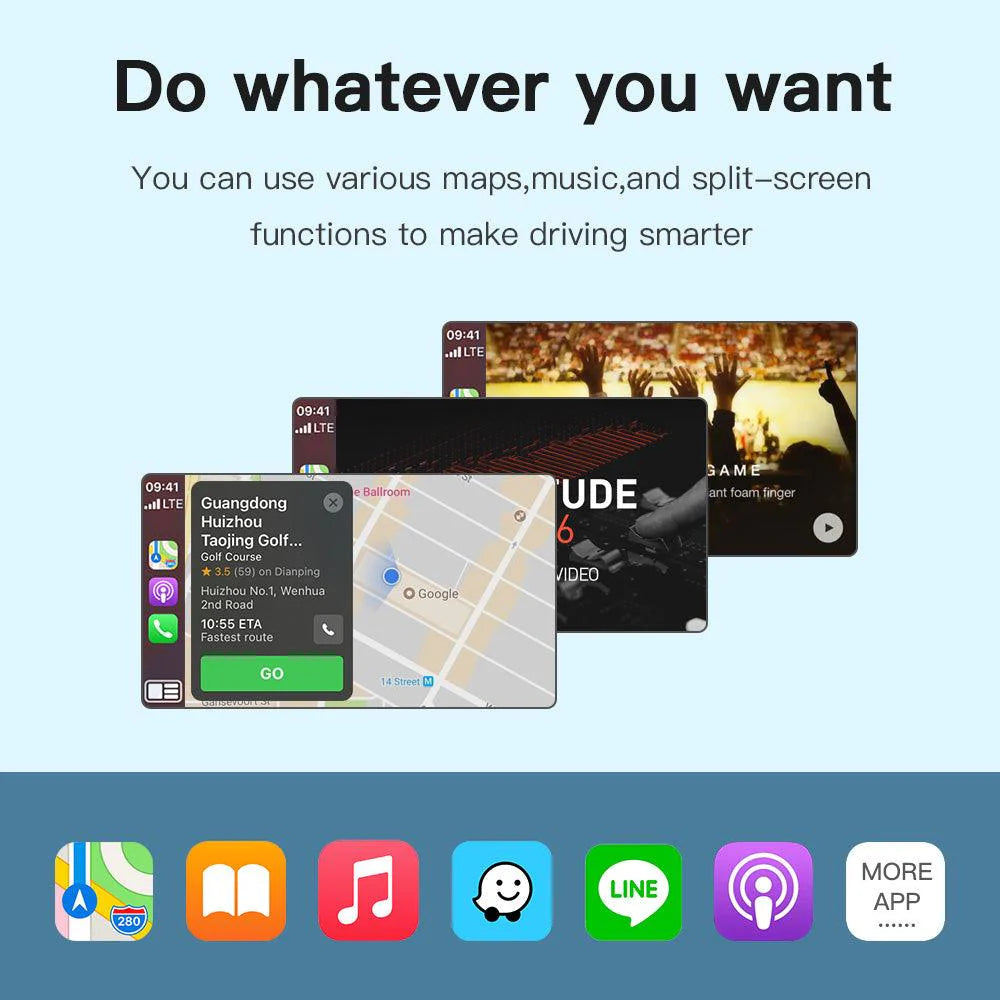
Beyond the Basics
Concentrate on real fit and control. Try to achieve a clean setup, safe use, and predictable behavior that fits your car and phone.
-
Wi-Fi 5 and 6 dual-band, Bluetooth 5.x, low latency handoff
-
Quick resume after ignition, auto-reconnect memory per driver profile.
-
Firmware OTA updates, release notes, rollback option
-
Split-screen support, app pinning, icon layout profiles, custom wallpapers
-
HDMI out USB media access SIM/LTE or tether Rear cam passthrough
-
Codec support (AAC/aptX/LDAC, if offered), EQ passthrough, fixed volume
-
Siri and Google Assistant triggers, customizable long‑press actions
-
Diagnostics screen for RSSI, bitrate, and packet loss
Consider app support beyond Apple’s core set. See how adapters cope with Spotify, YTM, Audible and Waze live traffic in the US. Validate lane guidance and speed limits work as anticipated on Bay Area freeways.
Seek out adapters that maintain steering controls functionality within third-party apps and retain solid audio focus when transitioning from Maps to calls.
Verify expansion possibilities. Certain models include Android OS with app downloads, SIM data, and HDMI, which is convenient for use while parked, on road trips, or for backseat screens.
Test rear camera triggers without lag and ensure that HDMI mirrors at 1080p with audio sync. Go beyond the basics and get above the rest. Rank adapters with UI tweaks, icon grids, and wallpaper choices for a cleaner, cable-free dash.
Audio Quality
-
Prefer adapters with AAC at minimum, optional aptX and LDAC, and robust 5 GHz connections.
-
Seek fixed-head‑unit volume paths and passthrough EQ.
Experience seamless source switching without pops going from Maps to calls. Check for floor noise at idle and low-bitrate streams.
A/B two models on a given route. Consider clarity at 70 mph, bass management, and dropouts below thick Wi-Fi.
Steering Wheel Controls
Check OEM button support – volume, track, voice. This keeps eyes on the road and minimizes reach.
Test long-press mapping for Siri or Google Assistant. Some let you customize binds, while others lock defaults.
Skip units that hijack or disable Next/Prev after install. Look in menus for per-button remap and profile save.
Boot-Up Time
Choose adapters with sub-15-second cold boots and near-instant resumption.
Posted specs versus user logs trust real times. Fast start counts for maps, calls, and safety.
If it still delays, power cycle, update firmware, and verify BT/Wi-Fi are on.
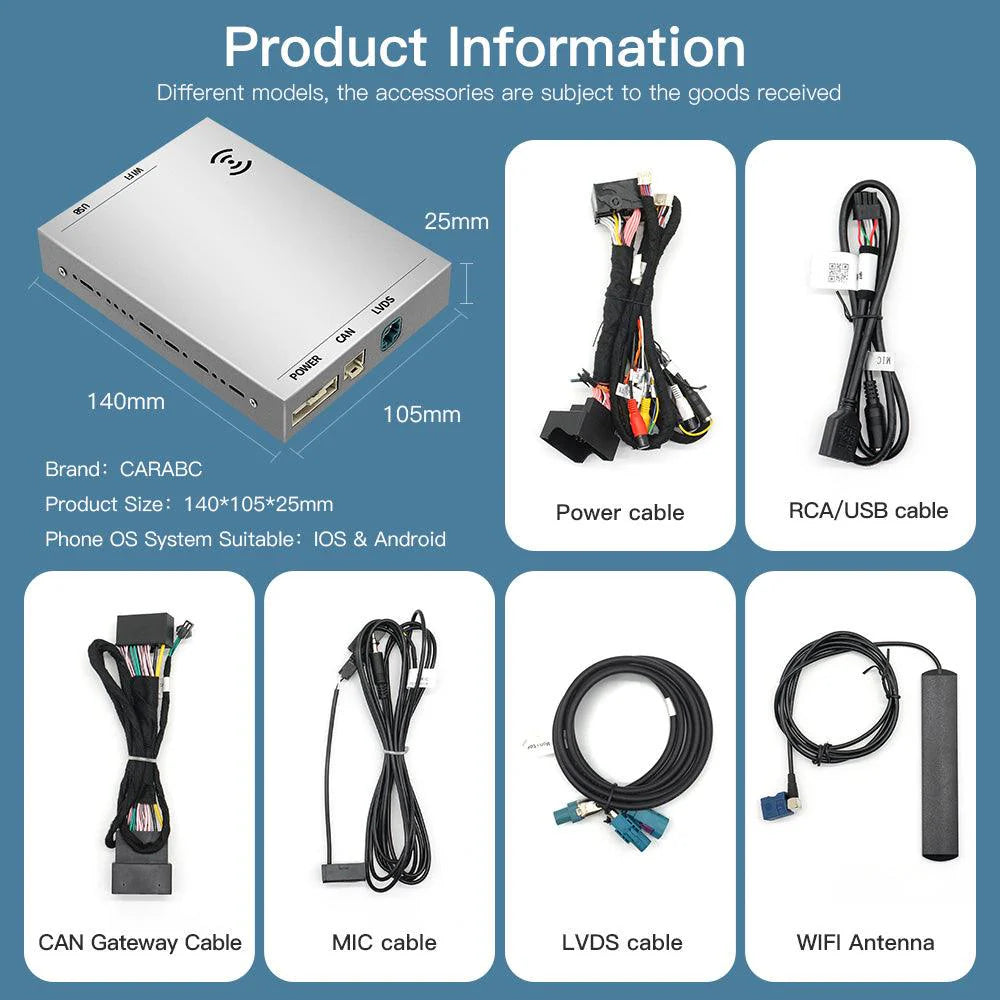
The Hidden Ownership Costs
Hidden costs accumulate quickly in the Bay Area or anywhere in the U.S., and CarPlay adapters are no different. Above the sticker price, plan for setup bits, firmware maintenance, and the actual possibility that a “universal” one still fails in your particular car head unit.
Professional install can run $100 to $200 if your dash access is tight and your USB port is buried behind trim. Most owners will want short USB-A to USB-C jumpers, right-angle connectors, or a 12V to USB adapter for reliable power, so budget $10 to $40. Some kits omit the USB cable altogether, so double-check what’s in the box.
If your phone drains quickly on road trips, missing pass-through charging can nudge you to purchase a separate wired hub or a MagSafe mount with power, which costs another $30 to $80. Don’t worry, firmware updates are free, but if an update bricks your unit, you may pay return shipping costs or have to eat downtime.
Value depends on warranty, returns and support. A year warranty with a transparent RMA path and U.S.-based chat or phone support trumps a 30-day limited promise. Brief warranties hand failure risk to you. Firm return windows are important if your car’s head unit spurns the adapter.
Look for support pages with posted firmware changelogs and VIN/head-unit compatibility lists. Those lower your troubleshooting costs.
OS churn. Every fall, iOS and Android updates wreak havoc on edge case Bluetooth stacks and Wi-Fi handshakes. Adapters that lag on patches can stutter and drop calls or fail to launch maps, necessitating an earlier replacement than desired.
Two or three years is typical; cheap units even less. If you’re swapping phones frequently, check for any device quirks. Some devices require additional pairing steps or different cables.
Beware of subscriptions. A handful of adapters restrict “premium” features, advanced codecs, or custom UI skins with monthly fees, making a $90 purchase into a recurring expense. Factor in vehicle-specific issues: some cars need CAN-bus aware harnesses or extensions.
Compatibility gaps can mean returns, swaps, or a pricier model that actually works.
Conclusion
To bring it home, select the adapter that suits your drive, not hype. Daily 101 or 280 commute with tons of tunnels? Wired remains stable. Short SF city hops with lots of stops? Wireless is awesome. Test boot time, mic quality, heat, and lag. Go for a minimum of 5 GHz, USB-A/USB-C support, and OTA updates. Search for a definite return window and strong U.S. Support. Watch out for sneak costs like additional cords, vent heat, and app quirks.
Real picks that work well in the Bay are CarlinKit 5.0 for budget, Ottocast U2‑Air for speed, and Motorola MA1 for set‑and‑forget.
Got questions on your car model or head unit? Leave a comment with your car, iPhone model, and commute. I’ll help you nail it down.
Frequently Asked Questions
Is a wireless CarPlay adapter better than a wired one?
Wireless is convenient for short jaunts and commutes. Wired is stabler and cheaper. In San Francisco traffic, wireless assists with quick hops, and wired triumphs for road trips and lag-free jams.
Will a CarPlay adapter work with my car and iPhone?
Check your car's head unit and iPhone iOS version. Most adapters require iOS 12 or higher and OEM or aftermarket CarPlay. Check with the brand's compatibility list prior to purchase.
How do I install a CarPlay adapter?
Plug into your car’s USB CarPlay port. Pair your iPhone with Bluetooth, then it toggles to Wi-Fi. Follow the screen prompts. Installs generally take less than 5 minutes.
What features should I look for?
Emphasize quick boot time, low lag, auto reconnect, OTA updates, USB‑A/C compatibility, heat resistance, and reliable US customer support. Bonus includes dual Bluetooth, codec support, and passthrough charging.
Are there hidden costs after buying?
Yes. Firmware update problems, returns, and data consumption can be costly. Certain adapters require high-end apps or cables. Consider warranty length, support responsiveness, and return shipping fees.
How can I reduce lag and disconnects?
Just update firmware, use high-quality USB cables, and keep the adapter ventilated, especially on hot Bay Area days. Turn off VPNs and background apps. If problems persist, go wired for important journeys.
Is a wireless adapter safe to use while driving?
Sure, if pre-established before driving. Keep your eyes on the road and control using voice with Siri. Mount your phone and stop fumbling with menus on the fly.


