
What Does Apple CarPlay Do and How Do You Use It? A 2025 Guide
by Echo Zou on Nov 30, 2025

CarPlay allows an iPhone to power select apps on a car’s native display, complete with Siri, touch, or knob interface for navigation, calls, texts, music, and podcasts. In the US, it integrates with Apple Maps, Google Maps, and Waze, supports Messages and WhatsApp, and streams from Apple Music, Spotify, and beyond. To reduce distraction, it displays large buttons, voice responses, and turn-by-turn navigation. In Bay Area traffic, that blend keeps hands on the wheel and information transparent.
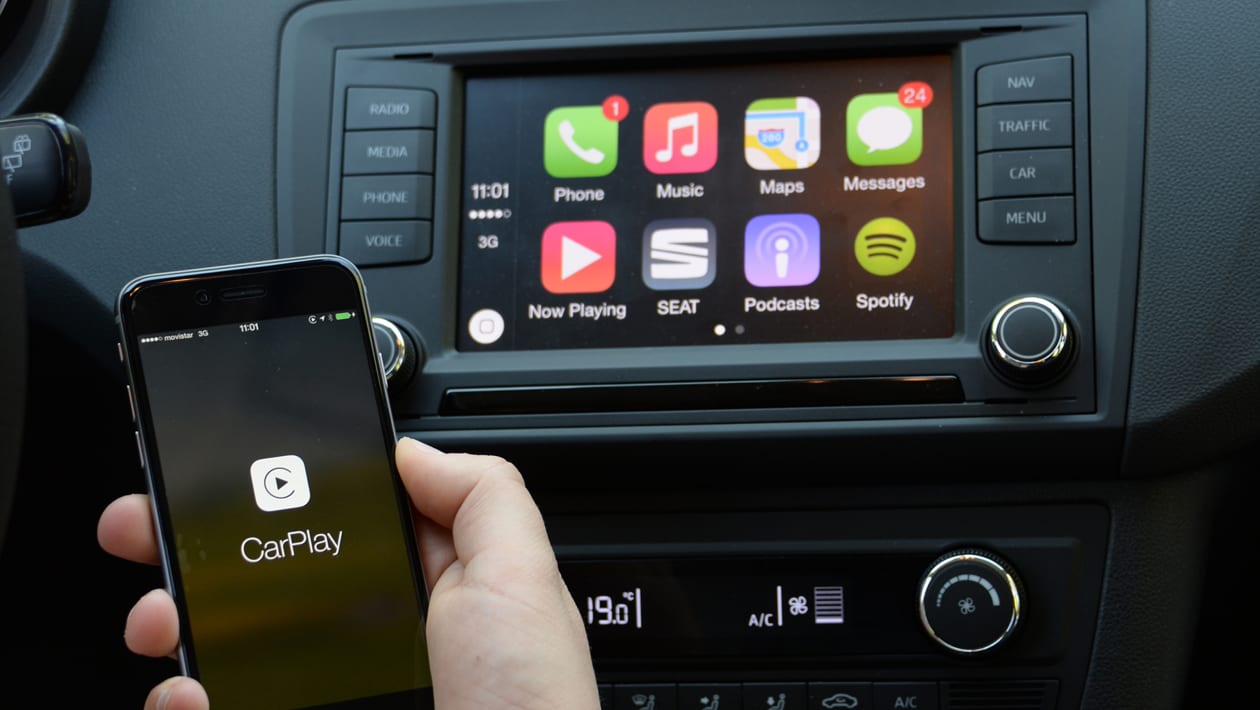
What CarPlay Actually Does
Makes your car’s screen into a distraction-minimized, iPhone-powered hub that replicates key apps with a driving-first interface. It supports wired Lightning or wireless setups on newer vehicles and iPhones. It keeps your maps, calls, music, and messages in one place with big touch targets, Siri front and center, and fewer taps.
|
Feature |
Pros |
Cons |
|---|---|---|
|
Navigation |
Clear maps, lane guidance, speed limits, live traffic |
Apple-first; app choice varies by region |
|
Communication |
Hands-free calls, read-aloud texts, contact images |
Voice errors in noisy cabins |
|
Entertainment |
Wide app support, fast switching, stable playback |
Video not supported while driving |
|
Vehicle Control |
Digital keys, basic car data, HomeKit hooks |
Depth varies by automaker |
|
Siri |
Natural voice control, smart prompts |
Requires data and clean mic audio |
1. Navigation
Displays Apple Maps or third-party alternatives such as Google Maps and Waze with live traffic, hazards, and ETAs. Lane guidance and clear markers simplify exits in dense Bay Area interchanges.
Have Siri find an address, a coffee on the route, or the closest gas station. Favorites and recents sync from your iPhone, so home, work, and last-minute meetings come up immediately. Speed limits and upcoming turns remain visible even when audio is playing.
2. Communication
Make and receive hands-free calls, listen to voicemails, and even have messages read out loud. Dictate replies to iMessage or WhatsApp with Siri, while your contacts, recents, and threads sit a tap away.
Incoming iMessage banners can display contact pictures, assisting in fast ID without searching through lists.
3. Entertainment
Play Apple Music, Spotify, podcast apps, and audiobooks through the car speakers with reliable playback. Swipe through playlists by touch, steering-wheel buttons, or Siri, and bounce between apps from the CarPlay home screen.
Wallpapers and color filters customize the look for day or night. It remains straightforward and rapid.
4. Vehicle Control
On compatible vehicles, you can check EV battery and charging status, use digital car keys to unlock and start directly from your iPhone. Some limited climate or seat controls may pop up as well when the automaker activates them. HomeKit tie-ins can trigger a garage door as you arrive.
5. Siri Integration
Initiate Siri by button or “Hey Siri” for directions, calls, texts, or tunes. It provides proactive suggestions from calendar events and frequent routes, can control supported third-party apps, and can ping lost AirPods so you can locate them before parking.
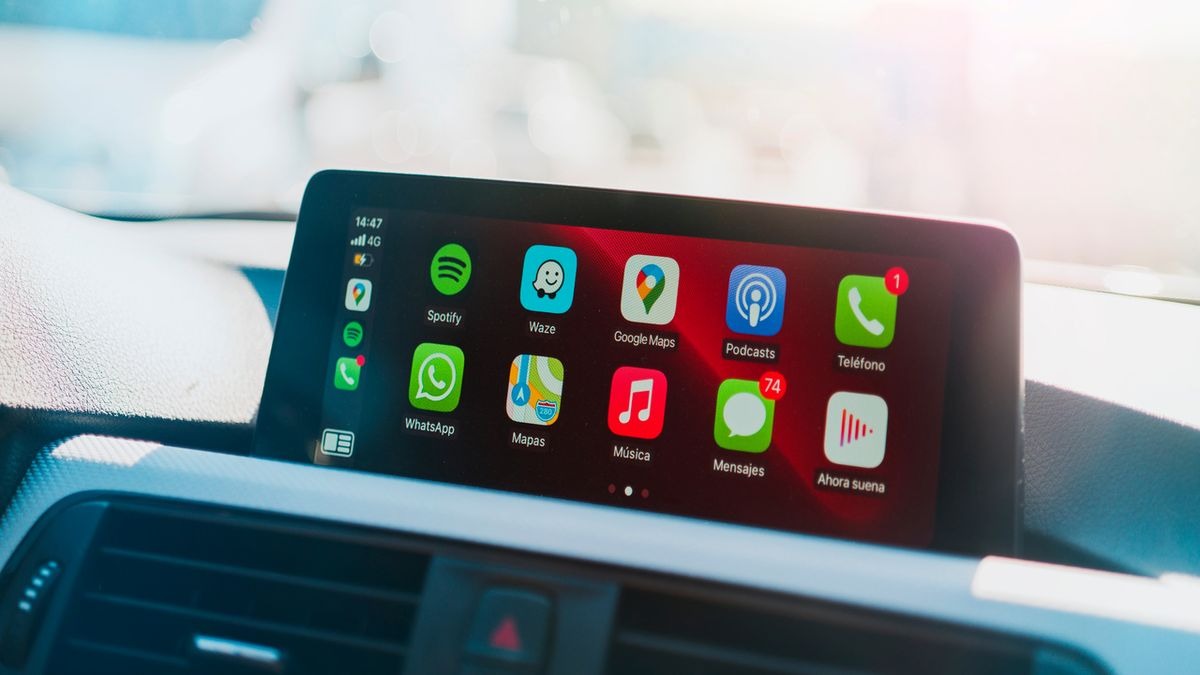
The CarPlay Setup Process
CarPlay connects your iPhone to the car’s screen so maps, calls, music, and messages operate in a safer, voice-first manner. Setup varies between car and iPhone, but the flow is similar.
-
Turn the car on, unlock your iPhone, and make sure Siri is on (Settings > Siri & Search > Listen for “Hey Siri”).
-
If it’s your first setup, navigate to Settings, then General, then CarPlay, and add your car.
-
Choose wired (USB) or wireless, per vehicle support.
-
Pair Bluetooth when prompted; allow contacts and sync.
-
Arrange apps in Settings > General > CarPlay.
-
Try out Siri through the steering-wheel voice button or "Hey Siri."
-
If necessary, jump back to the car’s native system with the CarPlay icon or button.
-
If problems occur, update iOS, test the cable, unpair and re-pair, or verify with the automaker.
Wired Connection
Plug into the vehicle’s labeled USB data port with a certified Lightning or USB‑C cable. CarPlay typically fires up immediately with a prompt on each screen. Find a way to keep your cable short and healthy to prevent dropouts, as a flaky connector will give you frozen maps or stuttered audio.
Wired mode charges during your drive, which is a lifesaver on long Bay Area commutes with persistent GPS use. It’s the solid, go-to choice in older head units or when wireless hardware is absent. If the car supports both, a first wired plug-in can finalize initial pairing for later wireless sessions.
Wireless Connection
Once wireless CarPlay is enabled on the head unit, the phone pairs over Bluetooth and the car hands off to Wi-Fi for bandwidth, giving a secure, fast link. You have auto-reconnect and can leave the phone in a pocket or bag. Wireless does not charge the phone, so plan a Qi pad or occasional cable top-off. If pairing loops, remove the car in Settings > General > CarPlay and select 'Forget This Car,' then try again.
Using an Adapter
Retrofit CarPlay to legacy systems with a plug-in dongle that resides in the USB port and manages Bluetooth/Wi-Fi configuration with on-screen prompts. Check the vendor’s trim/firmware compatibility list and update cadence. Performance differs with antennas and boot time.
-
CarlinKit: quick boot, OTA updates, solid wireless handoff.
-
Ottocast: dual‑band Wi‑Fi, wide head‑unit support, sleek UI.
-
Motorola MA1: simple setup, stable Google-branded hardware.
-
AAWireless (CarPlay-enabled variants): flexible configs, active firmware.
Choose based on car compatibility, lag, wake speed, and cost in USD.
Your iPhone and CarPlay
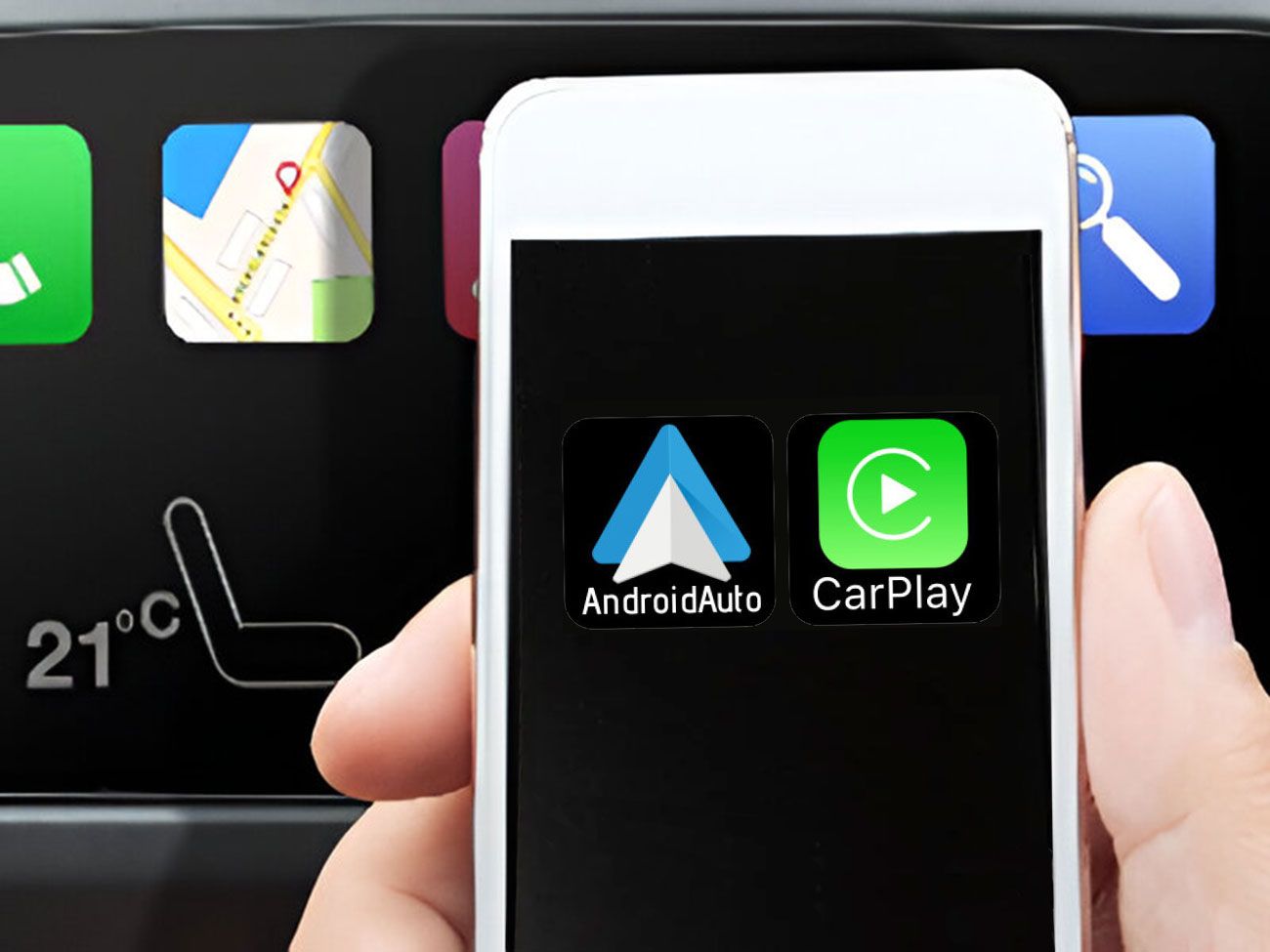
CarPlay mirrors key iPhone apps, such as Maps, Music, Phone, and Messages, on the dash, with voice and touch control designed for the road. It debuted as “iOS in the Car” (codename Stark) at WWDC 2013 and now supports USB and wireless connections. Anticipate a bit of lag on older head units or with flaky data, but most drivers continue to report it is safer and quicker than fumbling with a phone. Apple’s next wave, also known as CarPlay 2, wants to cover multiple screens, display car stats, and connect to car controls.
Supported Models
CarPlay works on iPhone 5 or above. That covers iPhone SE (all gens) and each mainline iPhone from 6 through 15 Pro Max. Any of these can run Maps (Apple, Google, Waze), music (Apple Music, Spotify, Pandora), and core comms (Phone, Messages, WhatsApp) with Siri.
-
IPhone 5 and later provide the best results on recent devices due to faster chips and better wireless stacks.
-
Automakers: Most brands in the U.S. Ship CarPlay on new trims, including BMW, Ford, Hyundai, Mercedes-Benz, Toyota, Honda, Subaru, VW, Audi, Volvo, Porsche, and more. Most support wireless CarPlay; some need USB.
-
Variations: Availability can change by model year, trim, or region, or dealer packages might bundle CarPlay with premium audio.
-
Exceptions: As of 2023, GM plans to phase out CarPlay in many EVs in favor of Android Automotive.
Check with the manufacturer or window sticker because a base trim might not include it.
iOS Updates
Maintain iOS up to date to access the new CarPlay UI, new widgets, more seamless Siri enhancements, and new app genres such as EV routing or fuel pricing. Apple’s release notes frequently highlight updates impacting the screen layout, Siri message screening, and safety-related app limits.
If CarPlay is misbehaving after an update, restart your iPhone, forget and re-pair the car, or toggle CarPlay in Settings. Don’t forget your car’s firmware either. Lots of brands roll out infotainment updates that repair lag or wireless drops.
Go to Settings > General > CarPlay to customize per-vehicle app order, switch on or off “Allow CarPlay While Locked,” handle multiple cars, and maintain a cohesive arrangement between different rides.
Beyond Apple's Apps
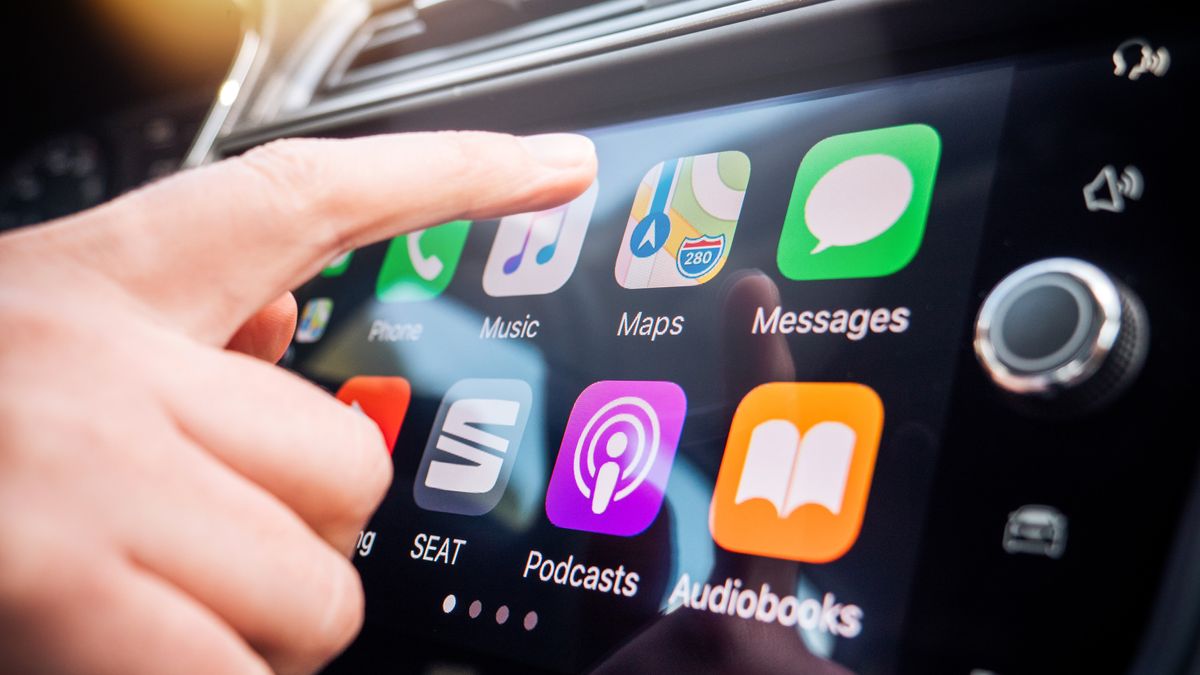
CarPlay extends beyond Apple’s own apps by accommodating some third-party apps, but the selection is limited and curated. At launch, just a handful of pre-approved non-Apple apps were permitted, and that careful precedent continues to define what you can run to this day. Most CarPlay-ready apps are audio: music, radio, and podcasts. Maps now include Waze, for example, but not all navigation apps are supported. Apple is the gatekeeper, and review rules are strict, so the App Store’s breadth doesn’t extend here.
Install and use third-party apps optimized for CarPlay, such as Waze, Google Maps, Spotify, and Audible.
Installed on the iPhone initially, if the app accommodates CarPlay it appears on the car display. Waze offers live traffic, lane advice, and user reports. Google Maps provides unambiguous routing, offline maps, and transit information, but in-car lacks some regions and features. Spotify, Apple Music, and Pandora manage road trips with big buttons, voice search, and easy queue management. Audible and Overcast include chapter jumps and speed control. There are still services that do not support CarPlay at all, and a few navigation apps are still missing despite user requests.
display a comparison of third-party apps optimized for CarPlay in a markdown table.
|
App |
Category |
Strengths in CarPlay |
Notable Gaps |
|---|---|---|---|
|
Waze |
Maps |
Crowd reports, hazard flags, reroute speed |
Map editing tools not in‑car |
|
Google Maps |
Maps |
Reliable routing, search, saved places |
Some features vary by region |
|
Spotify |
Music |
Big UI, voice search, library sync |
Limited playlist editing |
|
Audible |
Audiobooks |
Chapter nav, speed, whisper sync |
Store browsing locked to phone |
|
Overcast |
Podcasts |
Smart speed, voice boost, simple queue |
Power features limited while driving |
Arrange and remove apps on the CarPlay home screen for a tailored dashboard experience.
On iPhone, navigate to Settings > General > CarPlay > ‘Your Car’ > Customize. Drag to reorder, hide apps you don’t use, and pin your top three for less tapping. Party Maps and Audio on the first page, chuck it all over later. If you go with wireless setups, then battery usage is something to plan for because wireless CarPlay does not charge your phone like USB does.
Take advantage of regular app updates that add new features and improve CarPlay integration.
Update apps in the App Store for larger touch targets, improved Siri support and bug fixes that reduce input lag and audio dropouts. These updates typically enhance lane guidance and junction views. Beyond Apple’s apps, audio apps polish queue logic and offline play. If a function is lacking, see release notes. Some features launch geographically.

CarPlay and Driver Safety
CarPlay seeks to reduce hazards by minimizing screen exposure and prioritizing essential activities within a streamlined, driving-centric interface optimized for American roads and regulations. It puts call control, messages, maps, and audio all in one dashboard view so you can react quickly without fumbling for your phone.
Minimize distractions by using voice commands, large touch targets, and simplified menus designed for driving.
CarPlay minimizes cognitive load by using a stripped-down UI with large buttons, high-contrast fonts, and single task flows for every app screen. The Now Playing card, turn-by-turn banner, and map tiles utilize large hit areas so brief glances suffice even on rough pavement. Dark Mode and auto-dim at night reduce glare and eye strain. In Bay Area traffic or on I‑280, less nested menus and cleaner maps lead to reduced hunt time and faster choices.
Rely on hands-free controls for calls, messages, and navigation to keep your focus on the road.
Siri manages calls, texts, and addresses by voice, which typically distracts less than touch. Though if abused, it can impede reaction time as much as texting. Just say, ‘text running 10 minutes late’ or ‘route home via 101’ and have readouts play through the car's speakers. Most states prohibit screen taps when the vehicle is in motion, so speech input allows you to stay in line while still receiving turn directions and calendar notifications.
Benefit from visual and audio cues that reduce the need to glance at your phone or infotainment screen.
Turn cues mix lane guidance, chimes, and banner arrows that hover close to your sightline. Screen placement matters: mount within a shallow eye drop from the road, never block the windshield, and keep the phone stowed. The dashboard view displays directions, audio, and suggestions in a single place that minimizes context switches.
Do’s and Don’ts for safer use
Do:
-
Set destination and playlist before you drive.
-
Keep eyes forward; use brief glances only.
-
Use Siri for texts, calls, and POI search.
-
Enable Dark Mode and auto-dim at night.
-
Place the screen within easy reach and sightline.
Don’t:
-
Type or browse apps while in motion.
-
Mount the screen high or over vents that cause glare.
-
Stack alerts; mute non-urgent app pings.
-
Reconfigure layouts on the freeway.
-
Let CarPlay replace mirrors and road checks.
The Future of CarPlay
CarPlay is evolving from a phone mirror to a full in-car system that integrates seamlessly with the vehicle’s screens, controls, and sensors in a more compact manner. It maintains the straightforward app interface familiar to most drivers.
Expect expanded CarPlay integration with multiple vehicle screens, instrument clusters, and advanced vehicle functions.
CarPlay Ultra will cover the entire display stack in new vehicles — displaying maps, media, calls, and trip information on center screens, passenger displays, and the instrument cluster. That includes turn-by-turn in the gauge cluster, media controls accessible around the driver, and widgets that display range, tire pressure, or door status with a quick glance. Multi-display support introduces layout presets that correspond to trim levels and screen sizes, allowing a compact SUV in the Bay Area and a full-size pickup on U.S. Highways to operate the same system with different screen maps and gauge styles.
Look forward to new features like deeper climate control, seat adjustment, and EV charging management through CarPlay.
Deeper hooks into HVAC and seats will allow you to adjust fan speed, heated seats, or defrost from CarPlay tiles, physical knobs, or voice with state sync across all inputs. EV drivers will get charging goals, preconditioning timing, and route-aware stop plans that pop up beside Apple Maps with station filters for plug type and power level in kW, as well as idle-fee notifications.
Anticipate broader support for wireless CarPlay and improved compatibility with electric vehicles and next-generation infotainment systems.
Wireless CarPlay is becoming standard, slashing cable clutter and handoff time between drivers. Next-gen head units will boot faster, keep Bluetooth and Wi-Fi rock solid in dense urban traffic, and support low-latency audio for calls and turn cues. A Liquid Glass design refresh will introduce translucent layers, clearer iconography, and glanceable gauges and widgets that scale effectively on ultra-wide dashboards.
Watch for ongoing partnerships between Apple and automakers to deliver a more immersive, customizable in-car experience.
Automakers will debut CarPlay Ultra in limited models and subsequently add additional brands and trims over time. Anticipate more integration with Siri handling calls, messages, and media along with universal control routes so radio, climate, and drive data work through on-screen tiles, steering-wheel buttons, or voice. Custom themes and cluster layouts remain brand-specific yet still feel native to CarPlay.
Conclusion
All told, CarPlay cleanly places your iPhone on the dash. Maps does not get cluttered. Calls remain sleek. Texts are read aloud. Music and podcasts all feel speedy to get to. Siri does the grunt work, so hands stay on the wheel. Third-party apps like Waze, Spotify, WhatsApp, and Audible round it out. Wired or wireless works great, although Bay Area traffic and tunnels can really test the signal and power, so a cord still comes in handy on older rides.
For the 2nd step, experiment with a brief route you’re familiar with, test voice control, swap map apps, and adjust do not disturb. Looking for more advanced tips or a set-up checklist for your specific car? Leave a comment or hit me up on the blog.
Frequently Asked Questions
What does Apple CarPlay actually do?
What CarPlay actually does. You have access to maps, calls, texts, music, podcasts, and Siri voice control. It simplifies driving-related tasks so you can keep your eyes on the road.
How do I set up CarPlay in my car?
Connect your iPhone to the car’s USB port or pair wirelessly if available. Then enable CarPlay on your iPhone and your car’s infotainment system. Follow the on-screen prompts to complete the setup.
Does CarPlay work with any iPhone?
CarPlay is compatible with iPhone 5 and later models. You must have iOS 7.1 or later, but newer versions of iOS offer more features. Most new cars and many aftermarket head units support it.
Can I use Google Maps or Waze with CarPlay?
Yes. CarPlay supports third-party navigation such as Google Maps and Waze. You can change map apps, receive live traffic, and use voice guidance through your car’s speakers.
Is CarPlay safer than using my phone directly?
Yes. CarPlay cuts down distraction with larger on-screen controls and Siri voice commands. It keeps your eyes on the road and hands on the wheel.
Do I need a data plan for CarPlay?
Yeah, for maps, streaming stuff, Siri. About: what does carplay really do Offline maps and downloaded music can reduce data usage.
What’s coming next for CarPlay?
About: what carplay actually does Look forward to multi-screen support, climate controls, and more car data on screen based on your model and automaker.


